> ## Documentation Index
> Fetch the complete documentation index at: https://docs.vigolium.com/llms.txt
> Use this file to discover all available pages before exploring further.
# Installation & QuickStart
> Get up and running with Vigolium in a few minutes, install, verify, and run your first scan.
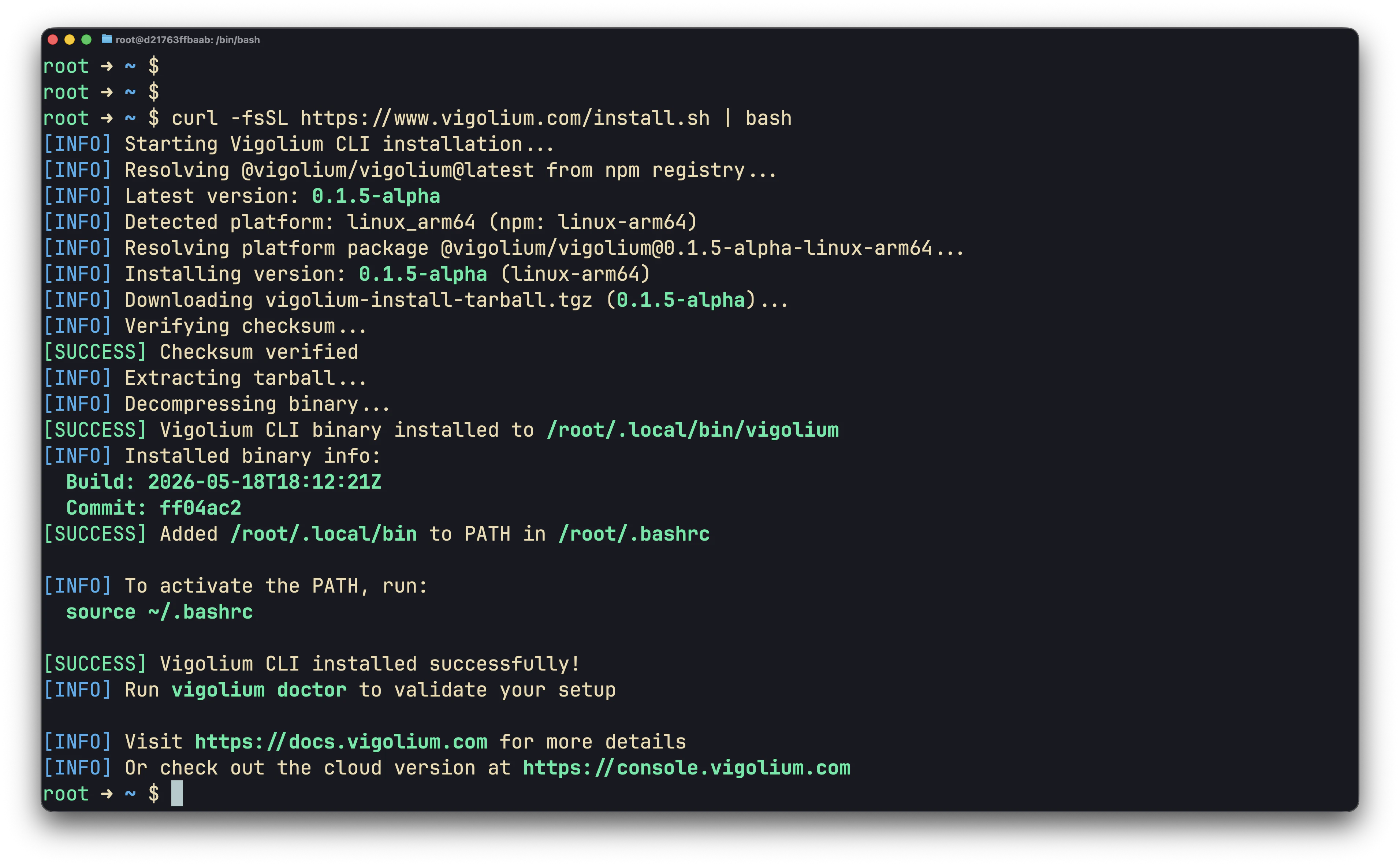 ## Step 1: Install [Vigolium Open Source](https://github.com/vigolium/vigolium)
```bash theme={null}
curl -fsSL https://vigolium.com/install.sh | bash
```
Installs `~/.local/bin/vigolium` and adds it to your shell profile. The installer verifies the SHA-256 checksum before installing.
```bash theme={null}
npm install -g @vigolium/vigolium
```
Thin launcher that pulls the prebuilt binary for your platform as an optional dependency (Node 16+).
```bash theme={null}
bun add -g @vigolium/vigolium
```
Installs the Vigolium launcher globally with Bun. Same prebuilt-binary launcher as the npm install path; Bun is just a faster package manager.
```bash theme={null}
brew install vigolium/tap/vigolium
```
Installs the latest release from the Vigolium tap on macOS and Linux. Upgrade with `brew upgrade vigolium`.
```bash theme={null}
docker pull j3ssie/vigolium:latest
docker run --rm j3ssie/vigolium:latest scan -h
```
The container entrypoint is the `vigolium` binary, pass any subcommand directly.
```bash theme={null}
git clone https://github.com/vigolium/vigolium.git
cd vigolium
make build
```
Requires Go 1.26+, Bun 1.3.11+, `git`, and `make`. Always use `make build` (not `go build`), it injects version metadata.
Vigolium only supports Linux and macOS natively. Windows users should use WSL or the Docker image.
If `~/.local/bin` was not already on your `PATH`, activate it without restarting your shell:
```bash theme={null}
export PATH="$HOME/.local/bin:$PATH"
```
## Step 2: Validate the installation
```bash theme={null}
vigolium version
vigolium doctor
```
`doctor` reports any missing optional dependencies (a browser for SPA spidering, nuclei templates for the known-issue scan, `bun`/`pi` for agent drivers) and confirms your config is valid. Let it auto-install anything missing:
```bash theme={null}
vigolium doctor --fix # auto-install/fix every failing check
```
`--only` accepts any of: `nuclei`, `chrome`, `bun`, `claude`, `agent-browser`, `pi`, `piolium`.
Everything Vigolium stores lives under `~/.vigolium/` (override with `VIGOLIUM_HOME`): config at `vigolium-configs.yaml`, scan DB at `database-vgnm.sqlite`, agent artifacts under `agent-sessions/`. Run `vigolium init` to create the workspace explicitly.
## Step 3: Run a full scan
`vigolium scan` runs the full multi-phase pipeline (discovery → spidering → dynamic-assessment) using the **balanced** strategy by default:
```bash theme={null}
vigolium scan -t https://example.com
```
Tune the depth/speed trade-off with a strategy preset:
```bash theme={null}
vigolium scan -t https://example.com --strategy lite # fast, dynamic-assessment only
vigolium scan -t https://example.com --strategy balanced
vigolium scan -t https://example.com --strategy deep # thorough, more modules
```
`--intensity quick|balanced|deep` is a higher-level alias that also tunes the scanning profile. Not sure which mode to use? See [Choosing a Scan Mode](/getting-started/choosing-a-mode).
## Step 4: One-shot stateless scan
For CI/CD pipelines, scripting, or quick ad-hoc checks where you don't want anything left behind on disk, add `--stateless` and export results with `-o`. Vigolium spins up a temporary SQLite database, runs the requested phases, writes the output, then deletes the database on exit.
```bash theme={null}
# Full pipeline, JSONL out, nothing persisted
vigolium scan --stateless -t https://example.com --format jsonl -o findings
# JSONL + HTML report, with content discovery
vigolium scan --stateless -t https://example.com --discover --format jsonl,html -o scan
# Single endpoint, no DB at all
vigolium scan-url https://example.com/api/users?id=1 -j
```
Multiple targets each get an isolated temp database and a per-host filename suffix so results don't overwrite:
```bash theme={null}
vigolium scan --stateless -T targets.txt --format jsonl -o results
# -> results-example.com.jsonl, results-test.example.com.jsonl, …
```
`--stateless` and `--db` are mutually exclusive. See [Native Scan & Stateless Scanning](/getting-started/native-scan) for the full recipe book.
## Step 5: Choose what to scan
```bash theme={null}
# A file of targets, one URL per line
vigolium scan -T targets.txt
# From an OpenAPI / Swagger spec
vigolium scan -i api.yaml -I openapi -t https://api.example.com
# Pipe URLs from stdin
cat urls.txt | vigolium scan
# A raw HTTP request or curl command (auto-detected)
echo "curl -X POST -d 'user=admin' https://example.com/login" | vigolium scan-request
```
Supported input modes (`-I`): `urls`, `openapi`, `swagger`, `postman`, `curl`, `burpxml`, `nuclei`, `har`.
## Step 6: Pick specific modules (optional)
```bash theme={null}
# Only run XSS and SQLi modules (fuzzy match on module ID/name)
vigolium scan -t https://example.com -m xss -m sqli
# Filter by tag instead
vigolium scan -t https://example.com --module-tag injection
# List everything available
vigolium -M
```
## Step 7: Get results out
By default findings stream to the console. For files or machine-readable output, use `--format` with `-o`:
```bash theme={null}
# JSONL for scripting / CI
vigolium scan -t https://example.com --format jsonl -o results
# Self-contained HTML report
vigolium scan -t https://example.com --format html -o report
# Several formats at once
vigolium scan -t https://example.com --format jsonl,html -o scan
```
| Flag | Effect |
| ----------------------- | -------------------------------------------------------- |
| `--format console` | Human-readable terminal output (default) |
| `--format jsonl` / `-j` | One JSON object per line |
| `--format html` | Interactive ag-grid report (requires `-o`) |
| `-o, --output` | Output file path (base name; extension added per format) |
| `--ci-output-format` | JSONL only, no banners or color, ideal for CI |
| `--silent` | Suppress everything except findings |
## Step 8: Run a single phase
Use `run ` (an alias for `scan --only `) when you only want one stage of the pipeline:
```bash theme={null}
vigolium run discovery -t https://example.com # content discovery only
vigolium run spidering -t https://example.com # browser crawl only
vigolium run dynamic-assessment -t https://example.com
```
Phases: `ingestion`, `discovery`, `external-harvest`, `spidering`, `known-issue-scan`, `dynamic-assessment`, `extension`.
## A note on persistence
`vigolium scan` writes results to a persistent SQLite database at `~/.vigolium/database-vgnm.sqlite`, so you can browse them afterward:
```bash theme={null}
vigolium traffic list # ingested HTTP records
vigolium finding list # discovered vulnerabilities
```
For one-shot runs that leave nothing behind (CI, ad-hoc checks), add `--stateless` and export with `-o`. See [Native Scan & Stateless Scanning](/getting-started/native-scan) for the full set of recipes.
## Updating & uninstalling
```bash theme={null}
vigolium update # update binary + nuclei templates
vigolium update --skip-templates # only reinstall the binary
vigolium update -F # skip the confirmation prompt
```
Homebrew, npm, and Docker installs are upgraded through their own tooling (`brew upgrade vigolium` / `npm update -g @vigolium/vigolium` / `docker pull`), not `vigolium update`.
## Next steps
* [Choosing a Scan Mode](/getting-started/choosing-a-mode), pick the right mode for your job.
* [Native Scan & Stateless Scanning](/getting-started/native-scan), CLI scan recipes.
* [Scanning Strategies](/native-scan/strategies), strategies, profiles, pace.
* [Authenticated Scanning](/native-scan/authentication), sessions and login flows.
* [Setting Up the Agent](/getting-started/setup-agent), AI-driven autopilot and swarm scans.
* [Configuration Reference](/getting-started/configuration), full configuration options.
## Step 1: Install [Vigolium Open Source](https://github.com/vigolium/vigolium)
```bash theme={null}
curl -fsSL https://vigolium.com/install.sh | bash
```
Installs `~/.local/bin/vigolium` and adds it to your shell profile. The installer verifies the SHA-256 checksum before installing.
```bash theme={null}
npm install -g @vigolium/vigolium
```
Thin launcher that pulls the prebuilt binary for your platform as an optional dependency (Node 16+).
```bash theme={null}
bun add -g @vigolium/vigolium
```
Installs the Vigolium launcher globally with Bun. Same prebuilt-binary launcher as the npm install path; Bun is just a faster package manager.
```bash theme={null}
brew install vigolium/tap/vigolium
```
Installs the latest release from the Vigolium tap on macOS and Linux. Upgrade with `brew upgrade vigolium`.
```bash theme={null}
docker pull j3ssie/vigolium:latest
docker run --rm j3ssie/vigolium:latest scan -h
```
The container entrypoint is the `vigolium` binary, pass any subcommand directly.
```bash theme={null}
git clone https://github.com/vigolium/vigolium.git
cd vigolium
make build
```
Requires Go 1.26+, Bun 1.3.11+, `git`, and `make`. Always use `make build` (not `go build`), it injects version metadata.
Vigolium only supports Linux and macOS natively. Windows users should use WSL or the Docker image.
If `~/.local/bin` was not already on your `PATH`, activate it without restarting your shell:
```bash theme={null}
export PATH="$HOME/.local/bin:$PATH"
```
## Step 2: Validate the installation
```bash theme={null}
vigolium version
vigolium doctor
```
`doctor` reports any missing optional dependencies (a browser for SPA spidering, nuclei templates for the known-issue scan, `bun`/`pi` for agent drivers) and confirms your config is valid. Let it auto-install anything missing:
```bash theme={null}
vigolium doctor --fix # auto-install/fix every failing check
```
`--only` accepts any of: `nuclei`, `chrome`, `bun`, `claude`, `agent-browser`, `pi`, `piolium`.
Everything Vigolium stores lives under `~/.vigolium/` (override with `VIGOLIUM_HOME`): config at `vigolium-configs.yaml`, scan DB at `database-vgnm.sqlite`, agent artifacts under `agent-sessions/`. Run `vigolium init` to create the workspace explicitly.
## Step 3: Run a full scan
`vigolium scan` runs the full multi-phase pipeline (discovery → spidering → dynamic-assessment) using the **balanced** strategy by default:
```bash theme={null}
vigolium scan -t https://example.com
```
Tune the depth/speed trade-off with a strategy preset:
```bash theme={null}
vigolium scan -t https://example.com --strategy lite # fast, dynamic-assessment only
vigolium scan -t https://example.com --strategy balanced
vigolium scan -t https://example.com --strategy deep # thorough, more modules
```
`--intensity quick|balanced|deep` is a higher-level alias that also tunes the scanning profile. Not sure which mode to use? See [Choosing a Scan Mode](/getting-started/choosing-a-mode).
## Step 4: One-shot stateless scan
For CI/CD pipelines, scripting, or quick ad-hoc checks where you don't want anything left behind on disk, add `--stateless` and export results with `-o`. Vigolium spins up a temporary SQLite database, runs the requested phases, writes the output, then deletes the database on exit.
```bash theme={null}
# Full pipeline, JSONL out, nothing persisted
vigolium scan --stateless -t https://example.com --format jsonl -o findings
# JSONL + HTML report, with content discovery
vigolium scan --stateless -t https://example.com --discover --format jsonl,html -o scan
# Single endpoint, no DB at all
vigolium scan-url https://example.com/api/users?id=1 -j
```
Multiple targets each get an isolated temp database and a per-host filename suffix so results don't overwrite:
```bash theme={null}
vigolium scan --stateless -T targets.txt --format jsonl -o results
# -> results-example.com.jsonl, results-test.example.com.jsonl, …
```
`--stateless` and `--db` are mutually exclusive. See [Native Scan & Stateless Scanning](/getting-started/native-scan) for the full recipe book.
## Step 5: Choose what to scan
```bash theme={null}
# A file of targets, one URL per line
vigolium scan -T targets.txt
# From an OpenAPI / Swagger spec
vigolium scan -i api.yaml -I openapi -t https://api.example.com
# Pipe URLs from stdin
cat urls.txt | vigolium scan
# A raw HTTP request or curl command (auto-detected)
echo "curl -X POST -d 'user=admin' https://example.com/login" | vigolium scan-request
```
Supported input modes (`-I`): `urls`, `openapi`, `swagger`, `postman`, `curl`, `burpxml`, `nuclei`, `har`.
## Step 6: Pick specific modules (optional)
```bash theme={null}
# Only run XSS and SQLi modules (fuzzy match on module ID/name)
vigolium scan -t https://example.com -m xss -m sqli
# Filter by tag instead
vigolium scan -t https://example.com --module-tag injection
# List everything available
vigolium -M
```
## Step 7: Get results out
By default findings stream to the console. For files or machine-readable output, use `--format` with `-o`:
```bash theme={null}
# JSONL for scripting / CI
vigolium scan -t https://example.com --format jsonl -o results
# Self-contained HTML report
vigolium scan -t https://example.com --format html -o report
# Several formats at once
vigolium scan -t https://example.com --format jsonl,html -o scan
```
| Flag | Effect |
| ----------------------- | -------------------------------------------------------- |
| `--format console` | Human-readable terminal output (default) |
| `--format jsonl` / `-j` | One JSON object per line |
| `--format html` | Interactive ag-grid report (requires `-o`) |
| `-o, --output` | Output file path (base name; extension added per format) |
| `--ci-output-format` | JSONL only, no banners or color, ideal for CI |
| `--silent` | Suppress everything except findings |
## Step 8: Run a single phase
Use `run ` (an alias for `scan --only `) when you only want one stage of the pipeline:
```bash theme={null}
vigolium run discovery -t https://example.com # content discovery only
vigolium run spidering -t https://example.com # browser crawl only
vigolium run dynamic-assessment -t https://example.com
```
Phases: `ingestion`, `discovery`, `external-harvest`, `spidering`, `known-issue-scan`, `dynamic-assessment`, `extension`.
## A note on persistence
`vigolium scan` writes results to a persistent SQLite database at `~/.vigolium/database-vgnm.sqlite`, so you can browse them afterward:
```bash theme={null}
vigolium traffic list # ingested HTTP records
vigolium finding list # discovered vulnerabilities
```
For one-shot runs that leave nothing behind (CI, ad-hoc checks), add `--stateless` and export with `-o`. See [Native Scan & Stateless Scanning](/getting-started/native-scan) for the full set of recipes.
## Updating & uninstalling
```bash theme={null}
vigolium update # update binary + nuclei templates
vigolium update --skip-templates # only reinstall the binary
vigolium update -F # skip the confirmation prompt
```
Homebrew, npm, and Docker installs are upgraded through their own tooling (`brew upgrade vigolium` / `npm update -g @vigolium/vigolium` / `docker pull`), not `vigolium update`.
## Next steps
* [Choosing a Scan Mode](/getting-started/choosing-a-mode), pick the right mode for your job.
* [Native Scan & Stateless Scanning](/getting-started/native-scan), CLI scan recipes.
* [Scanning Strategies](/native-scan/strategies), strategies, profiles, pace.
* [Authenticated Scanning](/native-scan/authentication), sessions and login flows.
* [Setting Up the Agent](/getting-started/setup-agent), AI-driven autopilot and swarm scans.
* [Configuration Reference](/getting-started/configuration), full configuration options.